
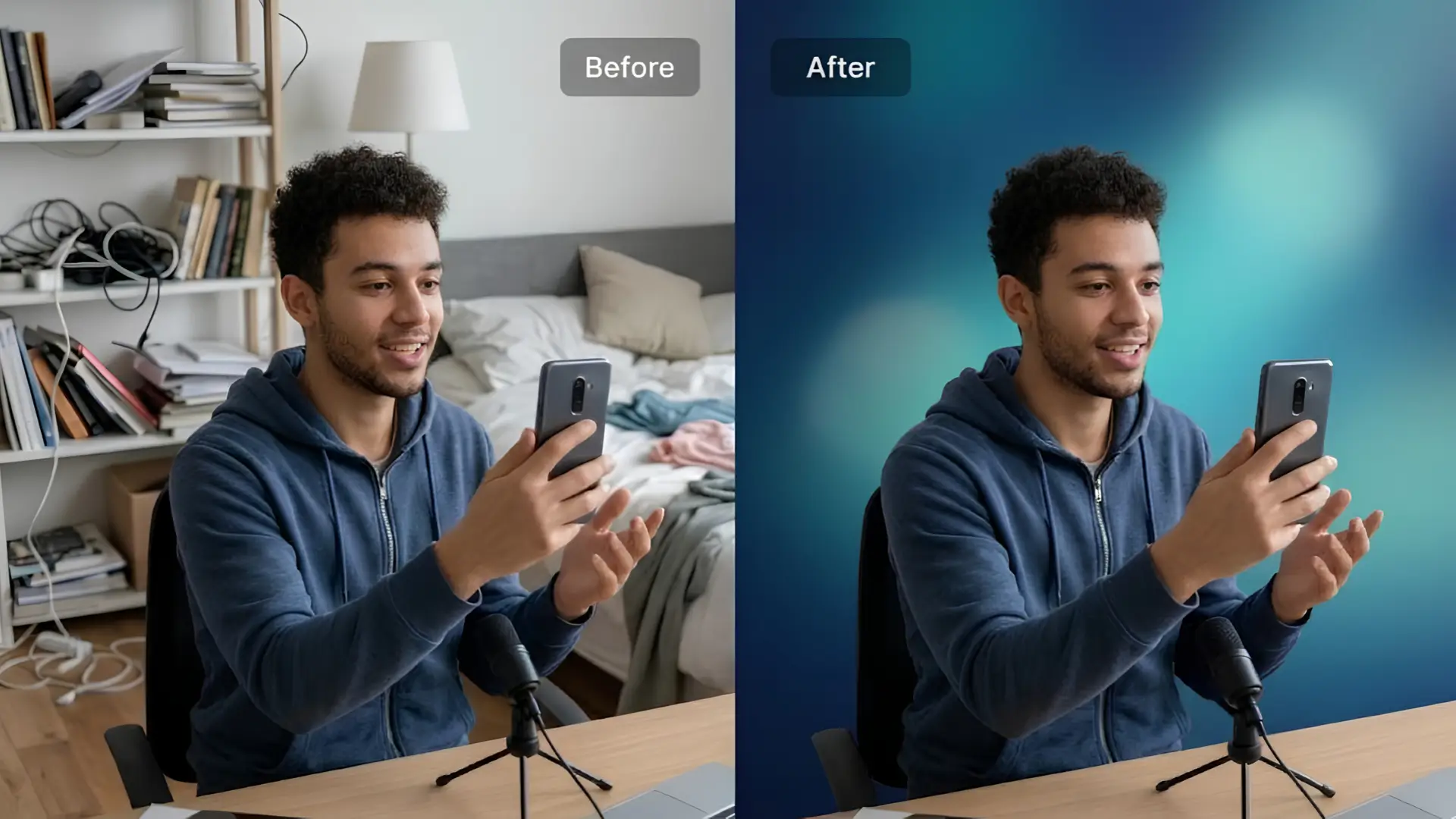
Removing the background from a video used to require a green screen, professional lighting, and advanced video editing skills. Today, AI has made this process much easier. You can upload a video, let an AI tool detect the person or object, and remove the unwanted background in just a few clicks.
Whether you are a YouTuber, social media creator, video editor, business owner, or digital marketer, an AI video background remover can save hours of editing work.
These tools are useful for creating professional-looking videos, replacing messy backgrounds, making product videos, preparing promotional content, and placing people in completely different environments.
However, not every tool works in the same way. Some tools are designed for quick background removal, while others offer complete video editing features, green screen effects, and AI-powered scene replacement.
In this guide, we will explore the best AI tools for removing backgrounds from videos, compare their features and pricing, and explain which one is worth trying or purchasing.
Quick Comparison: Best AI Video Background Remover Tools
If you don’t have time to read the complete article, here is a quick comparison of the tools covered in this guide.
| AI Tool | Best For | Free Plan | Background Removal |
|---|---|---|---|
| Canva | Social media videos and designs | Yes, limited | Paid feature |
| CapCut | Reels, Shorts and TikTok videos | Yes | Availability varies |
| VEED | Online video editing | Yes, limited | One free try |
| Adobe Express | Professional-looking video designs | Yes | Premium |
| Runway | Advanced AI video editing | Yes, limited credits | Advanced AI editing |
| Descript | Talking-head videos and podcasts | Yes, limited | Limited free access |
| Kapwing | Browser-based video editing | Yes, limited | Limited free access |
Note: Free-plan access and feature availability can change. Some tools offer limited trials rather than unlimited free background removal.
1. Canva – Best for Beginners and Social Media Videos

Visit Canva Official Website >>
Canva is one of the easiest platforms for creating social media graphics, presentations, marketing materials, and videos. It also offers an AI-powered video background remover that allows users to remove unwanted backgrounds without complicated editing.
The biggest advantage of Canva is that you don’t need to move between different applications to complete your project. You can remove a video’s background, add a new image or video behind your subject, insert text, apply animations, and create a complete social media post from one platform.
For example, if you record a video explaining a product in your room, you can remove the room background and place yourself in front of a professional office, studio, or branded background.
Main Features
- AI Video Background Remover: Automatically detects the foreground subject and removes the existing background.
- Drag-and-Drop Editor: Easily arrange videos, images, text, and other elements.
- Background Replacement: Add a new image, video, or solid color behind your subject.
- Ready-Made Templates: Access thousands of designs for social media and marketing videos.
- Animations and Effects: Make your videos more engaging with animations and visual effects.
- Brand Kit: Maintain consistent colors, fonts, and branding across your content.
- Cloud-Based Editing: Work on your designs through a web browser or supported mobile devices.
Pricing
Canva offers several subscription options.
| Plan | Price |
|---|---|
| Free | ₹0 |
| Pro Lite | ₹1,590/year |
| Pro | ₹4,000/year |
| Business | ₹6,800/year per person |
The prices above are listed on Canva’s India pricing page and may change.
Video background removal is a paid feature. Check the exact feature availability and usage limits of your selected plan before subscribing.
Pros and Cons
Pros
- Very beginner-friendly interface.
- Combines video editing and graphic design.
- Large collection of templates and creative assets.
- Useful for Instagram, YouTube, Facebook, and marketing content.
- No advanced editing knowledge required.
Cons
- Background removal is not available on the free plan.
- Not designed for advanced professional video editing.
- Complex movements and fine subject edges may require additional editing.
- Some AI features have usage limits.
Why Choose Canva?
Canva is a good option if you regularly create social media content and want to handle everything in one place. Instead of purchasing separate tools for video editing, graphic design, and background replacement, you can use Canva for many of these tasks.
Best For: Beginners, influencers, social media managers, marketers, and small businesses.
Visit Canva Official Website >>
2. CapCut – Best for Shorts, Reels and TikTok
Visit Capcut Official Website >>
CapCut is a popular video editing platform designed for creators who want to produce engaging videos without learning complicated editing software.
Its background removal features make it useful for people who record videos without a green screen. You can separate a person from the original background and place them over another image, video, or visual effect.
CapCut is particularly useful for short-form content. For example, you can record yourself talking about a topic, remove your room background, and place yourself in front of relevant images or video clips.
It also provides traditional chroma key editing for videos recorded with a green or blue screen.
Main Features
- Automatic Background Removal: Remove the background from supported video clips without manually selecting every frame.
- Chroma Key: Remove green or blue backgrounds using color selection.
- Background Replacement: Add a new image or video behind your subject.
- Video Effects: Apply transitions, filters, animations, and visual effects.
- Auto Captions: Generate subtitles for your videos.
- Audio Editing: Add music, sound effects, and voiceovers.
- Social Media Formats: Prepare videos for different platforms and aspect ratios.
Pricing
CapCut offers a free version along with paid subscription options.
| Plan | Price |
|---|---|
| Free | ₹0 |
| Pro | Varies by region and subscription |
CapCut Pro pricing can differ depending on the country, device, billing cycle, and available promotion. Check the official website or application for the latest price.
Also, some features that were previously available without payment may now be restricted to Pro users or have different availability across desktop, mobile, and web versions.
Pros and Cons
Pros
- Easy-to-use video editing interface.
- Suitable for short-form video creators.
- Offers automatic background removal and chroma key.
- Includes captions, transitions, effects, and audio tools.
- Available across supported desktop and mobile platforms.
Cons
- Some advanced features require a paid subscription.
- Feature availability can differ between devices and regions.
- Complex backgrounds may produce imperfect edges.
- Not the best choice for advanced professional production workflows.
Why Choose CapCut?
CapCut is an excellent choice if your main goal is to create engaging videos for YouTube Shorts, Instagram Reels, and TikTok.
Its biggest advantage is that background removal is only one part of a much larger editing toolkit. You can remove the background, add captions, include music, apply effects, and export your video without switching between multiple applications.
Best For: YouTubers, Instagram creators, TikTok creators, beginners, and short-form video editors.
Visit Capcut Official Website >>
3. VEED – Best Online AI Video Background Remover

Visit VEED Official Website >>
VEED is an online video editing platform that provides AI-powered editing features. It is especially useful for people who want to edit videos directly in their browsers without installing desktop software.
VEED offers a dedicated Background Remover feature that can detect a person in a video and remove the surrounding background. You can then add another background to create a more professional-looking video.
One useful thing about VEED is that it provides two different approaches to background removal: AI Background Remover and Green Screen (Chroma Key).
The AI option works with different types of backgrounds when a person is visible in the video. Green Screen is more suitable for footage recorded against a solid-colored background.
Main Features
- AI Background Remover: Automatically detects a person and removes the background.
- Green Screen: Remove a selected solid color from your video.
- Background Replacement: Add a different color, image, or video behind the subject.
- Automatic Subtitles: Generate captions for your videos.
- Video Templates: Use ready-made layouts for marketing and social media.
- Online Video Editor: Trim, crop, resize, and edit videos in your browser.
- AI Editing Tools: Access additional AI-powered video and audio features.
Pricing
VEED provides free and paid subscription plans.
| Plan | Pricing |
|---|---|
| Free | ₹0 |
| Lite | Check current regional pricing |
| Pro | Check current regional pricing |
| Business | Check current regional pricing |
VEED’s free plan provides access to Green Screen, but AI Background Remover is limited to one free try. Continued access requires a paid plan.
The actual subscription price and feature limits should be checked on VEED’s official pricing page before purchasing.
Pros and Cons
Pros
- Works directly in a web browser.
- No physical green screen is required for AI removal.
- Simple interface for beginners.
- Provides both AI removal and chroma key.
- Includes subtitles and other video editing features.
- Allows users to add replacement backgrounds.
Cons
- Free AI background removal is very limited.
- Requires an internet connection.
- Exported videos are not transparent.
- AI background removal is designed for footage with a person in the frame.
- Processing time can depend on video length.
Why Choose VEED?
VEED is a good option if you want a simple online video editor with background removal, subtitles, and other useful editing features.
It is particularly suitable for creators who record talking-head videos, online presentations, tutorials, and promotional content.
One important limitation is that VEED’s editor does not export a transparent video through its regular background-removal workflow. You need to add a replacement background before exporting.
Best For: Online creators, educators, marketers, and people who prefer browser-based editing.
Visit VEED Official Website >>
4. Adobe Express – Best for Professional Marketing Videos
Visit Adobe Express Official Website >>
Adobe Express is an online design and content creation platform from Adobe. It offers tools for creating social media graphics, presentations, promotional materials, and videos.
Its Remove Video Background feature makes it easier to remove unwanted backgrounds without manually working through complicated editing processes.
You can use it to create product promotions, business presentations, advertisements, and social media videos.
Adobe Express is especially useful if you want to create a polished final design after removing the background. You can combine your video with Adobe Stock assets, templates, fonts, and other creative elements.
Main Features
- Remove Video Background: Remove unwanted backgrounds from supported video projects.
- Background Replacement: Place your subject over a new background.
- Video Templates: Create promotional and social media videos using ready-made designs.
- Adobe Stock Assets: Access a large library of stock photos, videos, music, and design elements.
- Brand Kits: Maintain consistent brand colors, logos, and fonts.
- Video Editing: Trim, resize, arrange, and customize your videos.
- Cross-Device Access: Work through supported web and mobile applications.
Pricing
Adobe Express offers a free plan and a paid Premium plan.
| Plan | Price |
|---|---|
| Free | $0 |
| Premium | $9.99/month |
| Firefly Pro | $19.99/month |
These are the prices displayed on Adobe’s official US pricing page. Local pricing, taxes, and subscription offers may differ.
The Remove Video Background feature is included in Adobe Express Premium.
Pros and Cons
Pros
- Simple interface for creating professional designs.
- Offers background removal and video editing together.
- Large collection of templates and stock assets.
- Useful for businesses and marketing teams.
- Supports multiple types of creative projects.
Cons
- Video background removal requires a Premium subscription.
- Not as advanced as dedicated professional video editing software.
- Some features may require additional AI credits.
- The best results still depend on the quality of the original footage.
Why Choose Adobe Express?
Adobe Express is worth considering if you want more than just a background remover.
It combines background removal with branding, templates, stock assets, and video editing. This makes it a practical choice for small businesses, marketers, and content creators who regularly produce promotional videos.
Best For: Businesses, digital marketers, designers, and social media managers.
Visit Adobe Express Official Website >>
5. Runway – Best for Advanced AI Video Editing

Visit Runway Official Website >>
Runway is an advanced AI-powered creative platform designed for video generation and editing.
Unlike basic background-removal tools, Runway focuses on more sophisticated AI video editing workflows. It can help users modify video scenes, remove or replace backgrounds, and create new visual environments.
Its newer AI editing workflow is useful when you want to change more than just the background. For example, you may want to place a person in a different environment while maintaining the original movement and performance.
This makes Runway an interesting option for creative professionals, filmmakers, advertisers, and advanced content creators.
Main Features
- AI Video Editing: Modify existing video clips using advanced AI tools.
- Background Removal and Replacement: Isolate subjects or change scenes through supported editing workflows.
- AI Scene Editing: Make creative changes to the visual environment.
- Video Generation: Generate video content using supported AI models.
- Creative Effects: Produce unique visual effects and cinematic content.
- Browser-Based Workflow: Access its AI tools through an online platform.
Pricing
Runway offers a free plan with limited credits and paid subscriptions.
The amount you pay depends on the selected plan, available credits, and billing period. Check the official pricing page for current options.
Important: Runway retired its older standalone Remove Background tool in April 2026. Its newer background editing capabilities are part of its evolving AI editing workflow, so check the current feature and export requirements before subscribing.
Pros and Cons
Pros
- Advanced AI-powered video editing.
- Useful for creative scene modifications.
- Can produce more ambitious visual transformations than simple cutout tools.
- Suitable for professional creative projects.
- Offers additional AI video generation capabilities.
Cons
- More complicated than beginner-friendly editors.
- AI credits and subscription limits need consideration.
- Not the cheapest option for occasional background removal.
- Results can vary depending on footage and editing instructions.
- Some workflows have specific video length and export requirements.
Why Choose Runway?
Runway is a better choice if you want to experiment with advanced AI video editing rather than simply remove a background.
It is particularly useful for creative advertisements, cinematic videos, and projects where the entire environment needs to change.
If you only want to remove the background from a simple talking-head video, a more straightforward tool may be sufficient.
Best For: Professional video editors, filmmakers, creative agencies, and AI video enthusiasts.
Visit Runway Official Website >>
6. Descript – Best for Talking-Head Videos and Podcasts
Visit Descript Official Website >>
Descript is an AI-powered video and audio editing platform that offers a different approach to content creation.
One of its useful features is AI Green Screen, which can remove the background from a video without requiring a physical green screen.
Descript is especially useful for people who regularly record interviews, tutorials, online courses, podcasts, and educational videos.
The platform also allows you to edit videos by editing their transcripts. This means you can remove unwanted words, edit spoken content, and improve your video without spending hours working on a traditional timeline.
Main Features
- AI Green Screen: Remove and replace video backgrounds using AI.
- Text-Based Video Editing: Edit video by editing the transcript.
- Automatic Transcription: Convert spoken words into editable text.
- Studio Sound: Improve voice quality and reduce unwanted background noise.
- Filler Word Removal: Remove unnecessary words from recordings.
- AI Video Editing: Use AI-powered tools to speed up editing.
- Video Export: Export projects in supported resolutions based on your subscription.
Pricing
Descript offers a free plan and multiple paid plans.
| Plan | Price (USD) |
|---|---|
| Free | $0 |
| Hobbyist | $16/month annually |
| Creator | $24/month annually |
| Business | $50/month annually |
| Enterprise | Custom |
The prices above are based on the annual billing rates displayed on Descript’s pricing page. Monthly billing costs more.
Descript includes limited Green Screen access on its free plan, while paid plans provide higher usage allowances depending on the subscription.
Pros and Cons
Pros
- AI background removal without a physical green screen.
- Excellent for talking-head videos and podcasts.
- Transcript-based video editing saves time.
- Includes audio improvement tools.
- Supports video and audio editing in one platform.
Cons
- Some AI features use monthly credits.
- Requires an internet connection for AI Green Screen.
- Not ideal for every type of complex video scene.
- Advanced features require a paid plan.
Why Choose Descript?
Descript is a good choice if you regularly create videos where a person speaks directly to the camera.
Instead of purchasing a separate background-removal tool, you can use Descript to remove the background, improve audio, edit the transcript, and prepare your final video.
Best For: Podcasters, YouTubers, online teachers, interview creators, and course creators.
Visit Descript Official Website >>
7. Kapwing – Best for Quick Online Video Editing

Visit Kapwing Official Website >>
Kapwing is an online video editing platform that provides various tools for creators, marketers, and businesses.
It allows users to edit videos directly through a browser and offers features such as background removal, chroma key, subtitles, resizing, and other editing options.
Kapwing is useful for people who want to make quick changes without installing professional desktop software.
You can upload a video, remove its background, add a replacement visual, and complete the rest of your editing in the same project.
Main Features
- Video Background Removal: Remove the background from supported video clips.
- Chroma Key: Remove solid-colored backgrounds.
- Online Video Editor: Edit and customize videos in a browser.
- Background Replacement: Add images, colors, and other visual elements.
- Automatic Subtitles: Generate captions for videos.
- Video Resizing: Prepare content for different social media platforms.
- Team Collaboration: Share projects and work with other team members.
Pricing
Kapwing offers a free plan and paid subscriptions.
| Plan | Price (USD) |
|---|---|
| Free | $0 |
| Pro | $16/member/month annually |
| Business | Check official pricing |
| Enterprise | Custom |
The Pro price is based on annual billing. Monthly billing is more expensive.
The free plan includes limited credits, watermarked exports, and restrictions on video duration and resolution. Kapwing lists video background removal among its editing tools, but free users may have limited access.
Pros and Cons
Pros
- Works directly in a web browser.
- Easy for beginners to understand.
- Offers background removal and chroma key.
- Includes subtitle and resizing tools.
- Useful for quick social media edits.
- Supports team collaboration.
Cons
- Free exports include a watermark.
- Free plan has export and project limitations.
- Some advanced features require a paid subscription.
- Not a complete replacement for professional desktop editing software.
Why Choose Kapwing?
Kapwing is a good option if you want a simple online editing platform with several useful tools in one place.
It is especially helpful for creators who frequently edit social media videos, promotional clips, and short marketing content.
Best For: Social media managers, marketing teams, small businesses, and beginner video editors.
Visit Kapwing Official Website >>
Which AI Video Background Remover Should You Choose?
Choosing the right tool depends on your requirements, editing experience, budget, and the type of videos you create.
Here is a simple recommendation to help you decide.
| Your Requirement | Recommended Tool |
|---|---|
| Easy background removal for social media designs | Canva |
| YouTube Shorts, Reels, and TikTok videos | CapCut |
| Online background removal without installing software | VEED |
| Professional promotional videos | Adobe Express |
| Advanced AI scene editing | Runway |
| Talking-head videos and podcasts | Descript |
| Quick browser-based video editing | Kapwing |
Our Recommendations
Best Overall for Beginners: Canva
Canva is a practical starting point for beginners who want to remove backgrounds and create complete social media videos. Its templates and easy editing interface make the process simple.
Best for Short-Form Content: CapCut
If you primarily create YouTube Shorts, Instagram Reels, or TikTok videos, CapCut is worth trying. It combines background removal with many other useful editing features.
Best for Online Editing: VEED
VEED is suitable for users who want to edit videos directly in a browser. Its dedicated AI Background Remover is particularly useful for talking-head recordings.
Best for Professional Creative Work: Runway
Runway is the better option for users who want advanced AI-powered video editing and scene modifications rather than basic background removal.
Best for Podcasts and Tutorials: Descript
Descript is a strong choice for people who create educational videos, interviews, podcasts, and other talking-head content.
How to Choose the Right AI Video Background Remover
Before purchasing a subscription, consider the following points. A tool may look impressive in its marketing video, but that doesn’t mean it will work perfectly with your footage.
1. Check Background Removal Accuracy
This is the most important factor.
A good tool should detect your subject accurately and remove unwanted background elements without damaging the subject.
Pay special attention to:
- Hair and fine edges.
- Moving hands and fingers.
- Clothing details.
- Objects held by a person.
- Fast movements.
- Shadows and reflections.
Try uploading a sample video before purchasing a subscription.
2. Check Whether It Supports Transparent Video Export
Not every video background remover exports videos with transparency.
Some tools remove the background and automatically replace it with a solid color or another background.
If you want to use the isolated subject in another video editing application, check whether the software supports transparent video formats such as WebM with alpha or professional formats such as ProRes 4444.
This is especially important for professional video editors.
3. Check Video Length and File Size Limits
Some tools limit the duration of videos you can upload or process.
For example, you may be able to remove the background from a short social media video but face restrictions when processing a 15-minute recording.
Before purchasing, check:
- Maximum video duration.
- Maximum upload size.
- Supported video resolutions.
- Number of videos you can process.
- Processing speed.
- Monthly usage limits.
4. Check Export Quality
A background remover is only useful if the final video looks good.
Check whether the tool supports 1080p or 4K exports and whether it adds a watermark.
If you are creating videos for clients or businesses, watermark-free export should be one of your main requirements.
5. Compare Subscription Plans
Don’t purchase an expensive subscription just because it includes many AI features.
If you only need to remove backgrounds from five videos every month, a basic plan or limited free option may be sufficient.
However, if you edit videos daily, a subscription with higher usage limits and additional editing features may offer better value.
6. Check Privacy and Commercial Usage Rights
If you upload business videos, client recordings, interviews, or confidential content, read the tool’s privacy policy and data-retention terms.
Also, check the commercial usage rights of the platform’s stock assets, music, templates, and AI-generated content.
This is particularly important when producing videos for advertisements or paying clients.
AI Background Removal vs. Traditional Green Screen Editing
You may be wondering whether AI background removal is better than traditional green screen editing.
Both methods have their advantages.
| Feature | AI Background Removal | Traditional Green Screen |
|---|---|---|
| Physical green screen | Not required | Usually required |
| Setup | Simple | Requires proper setup |
| Editing skills | Beginner-friendly | May require some experience |
| Background flexibility | Works with different backgrounds | Works best with solid-colored backgrounds |
| Lighting requirements | Good lighting helps | Even lighting is important |
| Accuracy | Depends on AI and footage | Can be excellent with proper setup |
| Best For | Everyday creators | Controlled video production |
Which One Is Better?
AI background removal is generally more convenient for beginners and everyday content creators.
You don’t need to purchase a green screen or arrange a special recording setup.
Traditional chroma key editing, on the other hand, can deliver excellent results when the footage is recorded correctly with a properly lit green screen.
For most social media creators, AI background removal is a convenient starting point.
How to Remove a Video Background Using AI
Most AI video background removers follow a similar process. You don’t need advanced editing skills to get started.
Here is a simple step-by-step guide.
Step 1: Select an AI Video Background Remover
Choose a suitable tool based on your requirements. For this example, you can use Canva, VEED, CapCut, or Descript.
Step 2: Upload Your Video
Open the selected platform and upload the video you want to edit.
For better results, use a clear video with good lighting and a visible subject.
Step 3: Select the Background Removal Feature
Find the Background Remover, Remove Background, or Green Screen option.
Depending on the platform, you may find it under the editing tools or AI tools section.
Step 4: Let AI Process Your Video
The AI will analyze your video and identify the subject.
It will separate the foreground from the background. Processing time depends on video length, file size, and the platform.
Step 5: Add a New Background
Once the original background is removed, you can add:
- A professional office background.
- A studio background.
- A plain color.
- A product-related image.
- Another video.
- A custom branded background.
Step 6: Make Final Adjustments
Check the edges around your subject and make corrections if the platform offers manual editing options.
You can also add text, subtitles, music, transitions, and other effects.
Step 7: Export Your Video
Preview the final result and export your video in the required resolution and format.
Before publishing, check the video for unwanted background elements, visual glitches, and audio problems.
Tips for Getting Better AI Background Removal Results
Even the best AI tools can struggle with poor-quality footage. Follow these simple tips to improve the final output.
Use Good Lighting: Record your video in a well-lit environment. Avoid very dark footage and harsh shadows.
Keep the Subject Clearly Visible: Make sure the person or object is not hidden behind other objects.
Avoid Similar Colors: If your clothing and background have similar colors, the AI may struggle to separate them accurately.
Use a Stable Camera: Excessive camera movement can make background detection more difficult.
Record in Higher Resolution: Clearer footage gives the AI more visual details to work with.
Avoid Crowded Backgrounds: Although AI tools can handle many different backgrounds, simple footage generally produces cleaner results.
Preview Before Exporting: Always check moving edges, hair, hands, and clothing before downloading the final video.
Final Verdict: Which AI Video Background Remover Is Worth Buying?
AI video background removal has made video editing much easier for creators and businesses. You no longer need a professional studio or a physical green screen to create videos with clean backgrounds.
However, choosing the right tool is important.
If you are a beginner, start with Canva or CapCut. Both offer useful editing features that can help you create attractive social media videos.
If you prefer browser-based editing, VEED and Kapwing are worth considering. For business presentations and branded content, Adobe Express offers a useful combination of design and video editing features.
If you want more advanced AI editing capabilities, Runway is worth exploring. Descript is another strong option if you regularly produce talking-head videos, podcasts, and tutorials.
Our recommendation: Don’t purchase a subscription immediately. First, test your actual footage using the free version or trial wherever available. Check the quality of the background removal, export resolution, watermark restrictions, and usage limits. Once you find a tool that delivers the results you need, choose the subscription that fits your monthly video editing requirements.
The best AI video background remover is not necessarily the most expensive one. It is the one that saves you time and produces the results you want.
Frequently Asked Questions (FAQs)
1. What is the best AI tool for removing backgrounds from videos?
Canva, CapCut, VEED, Adobe Express, Runway, Descript, and Kapwing are useful options. The best choice depends on your requirements. Canva is beginner-friendly, CapCut is useful for short-form videos, and VEED offers a dedicated online background remover.
2. Can I remove a video background without a green screen?
Yes. Modern AI video background removers can detect people and separate them from the background without requiring a physical green screen. Tools such as VEED, Canva, and Descript offer this functionality.
3. Is there a free AI video background remover?
Some platforms provide free plans or limited trials. However, unlimited background removal is not always included. CapCut offers a free version with feature availability varying by platform and region. VEED also provides one free AI Background Remover try.
4. Can AI remove backgrounds from moving videos?
Yes. AI video background removers can process moving subjects across video frames. However, fast movements, motion blur, poor lighting, and objects covering the subject can affect the accuracy of the result.
5. Can I replace a video background with another video?
Yes. Many video editors allow you to place another video behind the isolated subject. You can use this feature to create professional presentations, promotional videos, and social media content.
6. Can I remove the background from a video on my phone?
Yes. Several platforms offer mobile applications or mobile-friendly editing experiences. CapCut and Canva are popular options for mobile content creation. Feature availability may vary by device and subscription.
7. Can AI remove the background from a product video?
It depends on the software. Some tools are designed primarily to detect people, while others offer chroma key or more flexible subject selection. For product footage, check whether the tool can isolate objects rather than only human subjects.
8. Which video background remover is best for YouTube?
CapCut is a useful choice for YouTube Shorts and simple videos. Canva is suitable for designed content, while Descript is helpful for tutorials and talking-head videos. Professional editors may prefer more advanced editing workflows.
9. Can I export a video with a transparent background?
Some specialized tools and workflows support transparent video exports, but many online editors do not. Check the supported export formats before purchasing. WebM with alpha and ProRes 4444 are examples of formats that can preserve transparency.
10. Does AI video background removal reduce video quality?
The original video may be reprocessed during editing and exporting. Quality depends on the software, export settings, and source footage. Choose a tool that supports the resolution you need and compare the exported result with the original.
11. Is AI video background removal suitable for commercial use?
Yes, it can be used for business presentations, advertisements, product demonstrations, and promotional videos. However, check the platform’s commercial licensing terms, privacy policy, and the rights associated with any stock assets or music you use.
12. Do I need video editing experience to use these tools?
No. Most beginner-friendly tools offer automatic background removal. You simply upload your footage, select the removal option, add a new background, and export the video.