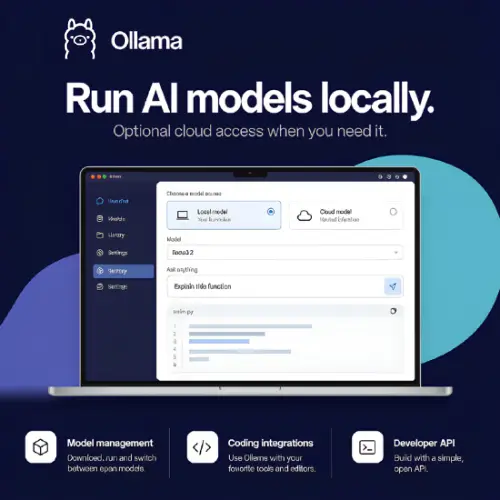
You have probably used ChatGPT or Claude in your browser. They are great, but they need the internet, and every message you send goes to a big company’s server. Ollama is a free tool that lets you run similar AI models right on your own laptop or desktop. No internet required after you download the model. No sending your private notes to a stranger’s computer.
The idea is simple. You install Ollama, pick a model, and start chatting. It works on Mac, Windows, and Linux. The official website calls it a way to “run AI models on your own computer, use them through compatible coding tools, and connect them to applications through an API.” That sounds technical, but the basic version is friendly enough for a school project or a weekend experiment .
How It Actually Works
Ollama does the boring parts for you. Normally, running an AI model locally means dealing with files, settings, and command-line flags that look like alien code. Ollama hides that. You download a model, and Ollama manages the downloading and running part.
You can use it in two ways. There is a simple app window where you type messages like you would in any chat app. Or you can open a terminal and type commands if you prefer that. For people learning to code, the terminal route is actually useful because you see what is happening behind the scenes.
The model itself decides what it can do. A small model might help with basic writing or simple questions. A bigger model can handle coding help, longer explanations, or more complex reasoning. The catch is that bigger models need more memory and a stronger computer. A huge model on a cheap laptop will feel like watching paint dry. Ollama does not magically make your hardware faster. It just makes the setup easier.
Why Would a Student or Beginner Care?
The obvious reason is privacy. If you are working on a personal project, writing a diary, or experimenting with ideas you do not want to share, local AI keeps everything on your machine. Once the model files are downloaded, you can even work offline. That is something cloud AI cannot do.
The second reason is cost. Ollama’s local software is free. You pay for your computer and electricity, but there is no monthly bill for using a local model. For a student who wants to learn how AI works without asking parents for a subscription, that matters.
The third reason is learning. When you use a cloud AI, you see a text box and a response. When you use Ollama, you see the model file download, the memory usage, the speed, and the API. You start understanding what “running a model” actually means. That knowledge is useful if you ever want to build something with AI later.
Local vs. Cloud: The Trade-Off You Need to Understand
Ollama now offers cloud models too, which sounds confusing at first. Why would a local tool offer cloud access? The answer is simple: sometimes your computer cannot handle the job.
Local inference means the thinking happens on your machine. It is private and offline-friendly. But a modest laptop will struggle with large models. The response might be slow, or the model might not fit in memory at all. Cloud inference moves the heavy work to Ollama’s servers. You get access to bigger models, but your requests leave your computer, and you need to pay attention to usage limits.
The official description is honest about this: “Connected tools, web searches, and other integrations may still send data elsewhere.” So if you are handling sensitive material, local is safer, but you still need to think about the whole setup, not just the model.
For most beginners, the smart move is to start local with a small model. Learn how it feels. Then decide if you need cloud access for bigger tasks.
Pricing: What You Actually Pay
Ollama’s local software is free. The cloud side has a free tier with starter credits, then paid plans. Here is the current pricing from Ollama’s official pricing page :
| Plan | Price | What You Get |
|---|---|---|
| Free | $0 | Run models locally, starter usage credits, access to starter models, add credits to unlock more |
| Pro | $20/month (or $200/year) | $60 usage credits per month, larger pro models, run multiple models at once, fast mode (coming) |
| Max | $100/month | Everything in Pro plus $300 credits per month, early access to new models, 10 concurrent requests |
| Team | $500/month | Unlimited users, $1,000 shared credits, centralized billing, priority support |
| Enterprise | Custom | Model access controls, cost budgets, private support channel, security questionnaires |
There is also pay-as-you-go model pricing for cloud usage. For example, the gpt-oss:20b model costs $0.07 per million input tokens and $0.30 per million output tokens. A cheaper option like gemma4 costs $0.14 input and $0.40 output. Bigger models like kimi-k3 cost much more: $3.00 input and $15.00 output. Off-peak pricing can cut some costs in half .
The key point for a beginner: you do not need to pay anything to run a local model. The paid plans are for people who want cloud access to bigger models or team features. If you are just learning, the free local version is enough.
The API: For When You Want to Build Something
Ollama has a developer API that supports both local and cloud models. It comes with official Python and JavaScript libraries. If you have ever tried to connect an app to an AI service, you know that every service has its own way of doing things. Ollama tries to reduce that pain by supporting “compatibility endpoints” that look like common AI API formats.
This means if you already have code that talks to another AI service, you might be able to point it at Ollama with only small changes. The official description warns that “compatibility is not complete,” so you should check the specific features your app uses. But for simple chat or text generation, it often works.
Local API requests do not need an API key. That is a relief because API keys are annoying to manage. Cloud requests do need a key, which makes sense since you are using their servers.
Coding Tools and Real-World Use
One of the practical features is integration with coding tools. If you use a code editor that supports AI assistants, you can point it at Ollama and use a local model for code suggestions. The quality depends on the model you choose. A small model might give basic help; a bigger coding-focused model will do better.
The official site mentions using Ollama for “chat, drafting, and code assistance.” For a student learning to code, having a local assistant that does not send code to a server is a nice bonus. You can ask it to explain an error or suggest a fix without worrying about privacy.
Key Features at a Glance
- Local model downloads and execution
- App and terminal access
- macOS, Windows, and Linux support
- Optional cloud model access
- Coding tool integrations
- Local and hosted APIs
- Official Python and JavaScript libraries
The local software is free, but you supply the hardware and electricity. Cloud access has a free allowance with paid subscriptions and usage credits. Model licenses vary, so check the terms if you plan to use a model commercially. Some models are open and permissive; others have restrictions.
Final Thought
Ollama is not magic. It will not turn a five-year-old laptop into a supercomputer. But it does something more useful: it makes local AI accessible. You can download it today, pick a small model, and see how AI works without a subscription or an internet connection. For students, hobbyists, and developers who want to experiment without sending every message to a paid service, that is a real win.
The cloud options are there if you need them. The local option is there if you care about privacy and learning. Start local. You can always add cloud access later when you hit the limits of your hardware.
Alternatives to Ollama
| Tools | Description |
|---|---|
| LM Studio | A desktop app with a graphical interface for downloading and running local models. It is easier for non-technical users who prefer clicking over typing commands. |
| llama.cpp | The underlying engine that Ollama is built on. It is more technical and gives you more control, but it requires more setup and command-line comfort. |
| vLLM | A high-performance server for running models on GPUs. It is designed for production use and multiple users, not casual desktop chatting. |
| LocalAI | An open-source server that provides an OpenAI-compatible API for various local backends. It is a good fit if you want API compatibility without cloud dependence. |
| Kapri | A newer drop-in replacement for Ollama that supports any GGUF model from HuggingFace and gives more transparent configuration. It is aimed at users who want more control. |