
Creating professional-looking videos does not always require an expensive computer or complicated editing software. Today, many content creators prefer editing videos directly from their smartphones. This is where YouTube Create becomes useful.
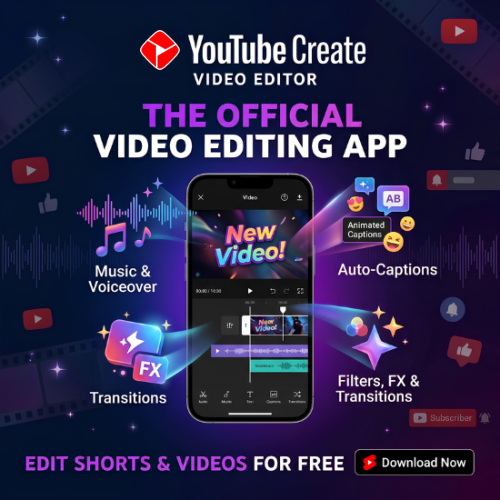
YouTube Create is an official video editing app developed by YouTube. It helps creators edit YouTube Shorts and long-form videos using simple editing tools. You can trim clips, add music, record voiceovers, create captions, apply filters, use transitions, and prepare videos for publishing.
One of the biggest advantages of this app is its pricing. YouTube Create is free to use and does not show advertisements inside the editing experience. This makes it an interesting option for beginners, YouTubers, vloggers, and social media creators who want to edit videos without spending money on premium software.
But is YouTube Create good enough to replace other popular video editors? What features does it offer, and what are its limitations?
In this detailed review, we will explore everything you need to know before using YouTube Create.
Note: This review is based on YouTube’s official information and available product features. Some AI tools and features may depend on your country, device, and account eligibility.
What Is YouTube Create?
YouTube Create is a free mobile video editing application developed by YouTube. It allows users to create and edit videos directly from their smartphones without needing professional editing software.

You can use it to create YouTube Shorts, regular YouTube videos, and other social media content. The app includes editing tools such as trimming, transitions, filters, music, sound effects, voiceovers, and automatic captions.
Its main purpose is to make video editing easier for creators, especially beginners who want to produce quality content without learning complicated editing techniques.
Key Features of YouTube Create
YouTube Create offers several useful features that help creators turn raw footage into engaging videos. Let’s understand its most important features.
1. Easy Video Editing
The app provides simple editing tools that make it easy to manage your video clips. You can import multiple videos and photos, arrange them in your preferred order, remove unwanted parts, and combine different clips into one video.
You don’t need professional editing experience to get started. The editing interface is designed to help beginners understand the basic process quickly.
2. Automatic Captions
Adding captions to videos is important because many people watch videos without sound.
YouTube Create can automatically generate captions for your videos. Instead of typing every sentence manually, you can use the automatic caption feature and make corrections where needed. This feature is especially useful for:
- YouTube Shorts creators.
- Educational video creators.
- Talking-head videos.
- Tutorials and product reviews.
- Social media content.
Caption availability and supported languages may vary.

3. Music and Sound Effects
Background music can make an ordinary video more interesting. YouTube Create provides access to music and sound effects that creators can use in their projects. You can choose suitable audio, adjust its placement, and make your videos more engaging.
You can also add your own audio files when needed.
The app is particularly useful for creators who want to add background music without searching through multiple websites.
4. Voiceover Recording
Sometimes, you may want to explain something instead of using the original video sound. YouTube Create allows you to record a voiceover directly inside the app. You can use this feature to explain tutorials, introduce products, share information, or add commentary to your videos.
For example, if you create a video about the best AI tools, you can show screen recordings and explain each tool using your own voice.
This makes the editing process easier because you don’t need a separate voice recording application.
5. Audio Cleanup
Background noise can reduce the quality of your videos. YouTube Create includes an audio cleanup feature that helps remove unwanted background sounds and makes your voice clearer.
This can be useful when recording videos at home, outdoors, or in places where you cannot completely control the surrounding noise.
However, the final result depends on the original audio quality. It cannot make every poor-quality recording sound like a professional studio recording.
6. Filters and Video Effects
You can improve the appearance of your videos using built-in filters and effects. These tools help adjust the visual style of your content without requiring advanced colour editing skills.
You can experiment with different effects to create a consistent look for your YouTube channel.
7. Transitions
Transitions help connect two video clips smoothly. YouTube Create provides different transition options that can make your videos look more professional.
For example, you can use transitions when moving between different scenes in a travel vlog, tutorial, product demonstration, or daily-life video.
8. Text, Fonts, and Stickers
You can add text to your videos to highlight important information.
The app offers fonts, animated text effects, stickers, GIFs, and emojis that help make your content more attractive. These tools are useful for creating:
- Attention-grabbing Shorts.
- Educational videos.
- Product promotions.
- Informational content.
- Social media videos.
9. Different Video Formats
Not every social media platform uses the same video dimensions. YouTube Create helps you prepare videos in different aspect ratios, including portrait, landscape, and square formats.
This is useful when you want to create vertical videos for Shorts and Reels or landscape videos for regular YouTube uploads.
10. AI-Powered Editing Features
YouTube has also introduced AI-powered features in YouTube Create.
The Edit with AI feature can help turn selected photos and video clips into an initial video draft with music and effects. You can then customise the result before publishing.
YouTube also provides experimental AI video and image creation features for eligible users in selected countries.
Keep in mind that these AI features are not necessarily available to everyone. Availability depends on Google’s rollout, supported countries, and account eligibility. YouTube Help+1
YouTube Create Pricing and Plans
One of the biggest reasons to try YouTube Create is its pricing. Unlike many popular video editing applications that lock important features behind paid subscriptions, YouTube Create is officially available free of charge.
Here is a simple pricing breakdown.
| Plan | Price | Details |
|---|---|---|
| Free Plan | $0 | Access to the video editing app |
| Monthly Plan | Not offered | No standard paid monthly editing plan |
| Yearly Plan | Not offered | No standard annual editing subscription |
| Enterprise Plan | Not offered | No separate enterprise pricing |
Free to use: According to YouTube’s official Help Center, YouTube Create is free and does not contain ads in its editing experience.
Important: Some AI features may have separate eligibility or availability restrictions. Free access to the editing app does not mean every experimental feature is available to every user.
How to Use YouTube Create
Getting started with YouTube Create is quite simple. You don’t need professional editing knowledge or special training.
Follow these steps to create your first video.
Step 1: Download the App
Download YouTube Create from the Google Play Store or Apple App Store. Sign in using your Google account.
Step 2: Start a New Project
Open the app and tap the Plus (+) icon to start a new project.
Step 3: Import Your Videos
Select the videos and photos you want to include in your project. You can import multiple files from your phone’s gallery.
Step 4: Edit Your Video
Use the editing timeline to trim clips, arrange scenes, remove unwanted parts, and combine different video files.
Step 5: Add Music and Effects
Add background music, sound effects, transitions, filters, and other effects to improve your video.
Step 6: Add Captions and Voiceovers
Use automatic captions to display spoken words on the screen. You can also record your own voiceover directly inside the application.
Step 7: Preview and Export
Watch the complete video before exporting it. If everything looks good, select your preferred video quality and export the final video.
Step 8: Upload to YouTube
You can save the finished video to your phone or upload it directly to your YouTube channel through the app.
YouTube officially supports both exporting and direct uploading from YouTube Create. YouTube Help+1
YouTube Create System Requirements and Availability
Before downloading the application, check whether your smartphone supports it.
Here are the basic requirements mentioned in YouTube’s official documentation.
| Requirement | Details |
|---|---|
| Android | Android phone with at least 4 GB RAM |
| iPhone | iPhone XR or newer |
| iOS Version | iOS 17 or later |
| Google Account | Required |
| Internet | Required for downloading and certain online features |
| Availability | Selected countries and regions |
| Desktop Support | No dedicated desktop application |
YouTube Create is available in India, so Indian creators can download and use it if their devices meet the requirements.
Who Should Use YouTube Create?
YouTube Create is designed for different types of content creators. However, it is particularly useful for people who prefer editing videos on their smartphones.
Here are some users who may benefit from this application.
1. Beginner YouTubers
If you are starting a YouTube channel and don’t want to spend money on editing software, YouTube Create is a good starting point.
You can learn basic editing skills and create videos without dealing with complicated tools.
2. YouTube Shorts Creators
If your main focus is creating Shorts, this app can help you edit vertical videos, add captions, include music, and create engaging content.
3. Educational Content Creators
Teachers, trainers, and online educators can use YouTube Create to prepare tutorials, lessons, and informational videos.
Voiceovers and automatic captions can make educational content easier to understand.
4. Vloggers
Travel vloggers and daily-life content creators can combine multiple video clips, add background music, and create complete videos using their smartphones.
People managing Instagram, Facebook, and other social media accounts can use the app to prepare videos in different formats.
6. Small Business Owners
Small business owners can create simple promotional videos, product demonstrations, and informational content without hiring a professional video editor for every project.
Why Is YouTube Create Different From Other Video Editing Tools?
There are many video editing applications available today, including CapCut, VN, InShot, and KineMaster.
So, what makes YouTube Create different?
The biggest difference is that it is developed by YouTube itself and is designed with YouTube creators in mind. Here are some important advantages:
- Official YouTube application: It comes from the same company that operates YouTube.
- Free editing: You don’t need to purchase a standard editing subscription to use the app.
- No editing ads: YouTube describes the application as an ad-free editing experience.
- Direct YouTube publishing: You can upload your finished videos directly to your channel.
- Beginner-friendly tools: Its basic editing features are easy to understand.
- Shorts and long-form support: You can work on both types of YouTube content.
- Built-in audio tools: Music, sound effects, voiceovers, and audio cleanup are available.
These features make YouTube Create a convenient option for creators who want a simple editing workflow.
Pros and Cons of YouTube Create
No video editing application is perfect. YouTube Create also has some advantages and limitations. Let’s look at both sides.
Pros
- Completely free to use.
- No advertisements inside the editing experience.
- Official application developed by YouTube.
- Simple interface for beginners.
- Supports YouTube Shorts and long-form videos.
- Includes automatic captions.
- Offers music and sound effects.
- Supports voiceover recording.
- Includes transitions, filters, and effects.
- Allows direct uploading to YouTube.
- Supports different video aspect ratios.
Cons
- Designed for mobile devices rather than desktop computers.
- Requires a supported smartphone and operating system.
- Some AI features are available only to selected users.
- Not designed for advanced professional video editing workflows.
- Some features may have device or regional limitations.
- Professional editors may find its editing controls limited.
- Advanced colour grading and complex editing workflows may require other software.
Is YouTube Create Safe to Use?
Yes. YouTube Create is an official application developed by Google/YouTube, not an unknown third-party editing application.
You can download it through the official Google Play Store or Apple App Store.
However, you should still follow basic safety practices:
- Download the app from official app stores.
- Avoid modified or unofficial APK files.
- Review app permissions before granting access.
- Use music and other media that you have permission to use.
- Follow YouTube’s copyright and Community Guidelines.
Also, remember that using YouTube Create does not automatically make every video copyright-safe. You are responsible for the footage, music, images, and other materials you include in your content.
YouTube Create vs Other Video Editing Apps
If you are confused about choosing a video editor, this comparison will help you understand where YouTube Create stands.
| Tool | Best For | Pricing |
|---|---|---|
| YouTube Create | YouTube videos and Shorts | Free |
| CapCut | Creative video editing | Free and Paid |
| VN Video Editor | Mobile video editing | Free and optional paid features |
| InShot | Reels and Shorts | Free and Paid |
| KineMaster | Advanced mobile editing | Free and Paid |
| Canva | Video design and social media content | Free and Paid |
Prices and available features can change depending on your country, platform, and subscription.
Is YouTube Create Worth Using?
Yes, YouTube Create is worth trying, especially if you are a beginner or a YouTube creator who prefers editing videos on a smartphone.
Its biggest advantage is that you get useful editing tools without paying for a monthly subscription. You can trim videos, add transitions, record voiceovers, generate captions, and prepare content for your YouTube channel.
For creators who mainly produce Shorts, tutorials, vlogs, and simple informational videos, it can be a practical editing solution.
However, if you need advanced video editing features, detailed colour correction, professional effects, or complex multi-layer editing, you may need a more powerful application.
My recommendation is simple: start with YouTube Create if you want a free and easy video editor. Once your editing requirements become more advanced, you can explore other professional tools.
Final Thoughts
YouTube Create is a useful video editing application for anyone who wants to create content without spending money on expensive editing software.
Its simple interface, useful editing tools, automatic captions, music library, voiceover recording, and direct YouTube publishing make it a good choice for beginners and mobile content creators.
The application is not designed to replace every professional video editor. However, it covers many of the basic editing needs of everyday YouTubers.
If you are planning to start a YouTube channel or want to create better Shorts using your smartphone, YouTube Create is definitely worth a try.
The best part? You can start creating videos without paying for an editing subscription.
Alternatives to YouTube Create
If YouTube Create does not offer all the editing features you need, here are some good alternatives worth exploring.
1. CapCut
CapCut is a popular video editing application with transitions, effects, automatic captions, templates, and AI-powered editing tools. It is a good choice for creating engaging Shorts, Reels, and social media videos.
2. VN Video Editor
VN is a beginner-friendly video editor that offers multi-track editing, transitions, filters, music, and keyframe controls. It is suitable for creators who want more editing flexibility on their smartphones.
3. InShot
InShot is a simple video editing application for creating social media videos. It offers trimming, filters, transitions, text, music, and different video aspect ratios.
4. KineMaster
KineMaster provides advanced mobile editing features, including multiple video layers, chroma key, audio controls, transitions, and effects. It is suitable for creators who want more control over their editing projects.
5. Canva
Canva is a useful platform for creating social media videos, presentations, promotional content, and marketing designs. Its templates and simple editing tools make video creation easier for beginners.