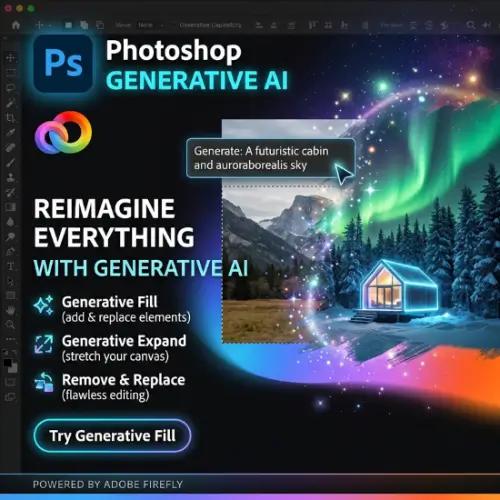
Adobe Photoshop has been one of the most popular photo editing tools for years. However, with the addition of generative AI, it has become much more powerful. You no longer need to spend hours removing unwanted objects, changing backgrounds, or creating new elements in a photo. Photoshop can now do many of these tasks with simple text instructions.
Photoshop Generative AI brings artificial intelligence directly into the traditional photo editing workflow. Its most popular feature, Generative Fill, allows users to add, remove, or replace objects by selecting an area and describing what they want. Photoshop then creates an image that matches the surrounding environment.
Whether you are a photographer, graphic designer, content creator, or business owner, these AI features can save time and make image editing easier.
In this article, we will explore Photoshop Generative AI, its main features, how it works, pricing, advantages, disadvantages, and some of the best alternatives available.
What Is Photoshop Generative AI?
Photoshop Generative AI is a collection of artificial intelligence features inside Adobe Photoshop that helps users create and edit images using text prompts and smart editing tools.
It uses Adobe Firefly image models and selected third-party AI models to understand what users want and generate suitable visual results.
For example, imagine you have a photograph of a person standing in a park, but there is an unwanted object in the background. Instead of manually removing it, you can select that object and use Generative Fill. Photoshop will analyse the surrounding area and replace the selected part with a suitable background.
You can also use it to add new objects, change backgrounds, extend photographs, improve image quality, and create different versions of an image.
One of its biggest advantages is that AI-generated changes are added as separate generative layers. This means you can adjust or remove the changes without permanently affecting your original photograph.
Photoshop Generative AI is especially useful for people who regularly work with photographs, advertisements, product images, social media graphics, and creative designs.
Main Features of Photoshop Generative AI
Adobe has introduced several AI-powered features that make Photoshop more useful for everyday editing and professional design work.
Here are some of its most important features.
1. Generative Fill
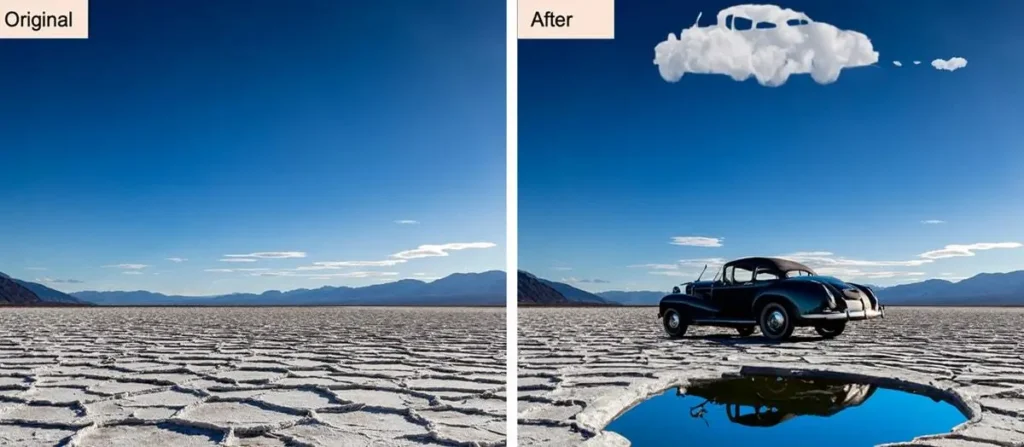
Generative Fill is one of the most useful AI features in Photoshop. It allows you to add, remove, or replace objects in an image using simple text prompts.
You only need to select the area you want to edit and describe the changes you want to make.
For example, you can select an empty area and type “Add a wooden table with a flower vase.” Photoshop will generate the requested object and try to match its lighting, shadows, and perspective with the original image.
You can also leave the prompt empty when you want Photoshop to remove something and fill the selected area using its surroundings.
Some common uses include:
- Removing unwanted objects from photographs.
- Adding furniture to room photographs.
- Changing clothes or accessories in creative images.
- Adding trees, buildings, or other background elements.
- Replacing products in promotional photographs.
Another useful option is the ability to use a reference image to guide certain generations. This can help when describing a particular product, style, or object with words is difficult.
2. Generative Expand
Sometimes, you capture a beautiful photograph but later discover that it does not fit the size required for a website, advertisement, or social media post.
Generative Expand helps solve this problem.
It allows you to increase the size of an image beyond its original borders. Photoshop then generates additional content to fill the newly created space.
For example, if you have a portrait photograph but need a wide landscape image for a website banner, you can expand the canvas on both sides.
Photoshop will try to create a natural-looking continuation of the original scene.
This feature is useful for:
- Creating website banners.
- Resizing images for social media.
- Extending landscape photographs.
- Adjusting images for different advertising formats.
- Adding more space around a subject.
3. Generate Background
Generate Background helps you replace the existing background of an image with a new AI-generated scene.
For example, if you have a product photograph taken in a simple room, you can create a professional studio background or a beautiful outdoor environment.
You can describe the background you want, and Photoshop will generate a suitable result around your subject.
This feature is particularly useful for online sellers, ecommerce businesses, and social media marketers who need attractive product photographs.
It can also help photographers experiment with different environments without arranging a physical photoshoot.
4. Harmonize
Adding an object to a photograph is easy, but making it look natural can be difficult.
Harmonize helps solve this problem by automatically adjusting the lighting, colours, shadows, and other visual details of an added object.
For example, imagine you have added a chair to a living room photograph. The chair may look different from the rest of the scene because its lighting does not match.
Harmonize analyses the background and adjusts the added object to make it look more natural.
This feature is useful for:
- Product mockups.
- Interior design concepts.
- Creative photo compositions.
- Advertising images.
- Professional graphic designs.
5. Remove Tool and Distraction Removal
Photographs sometimes contain unwanted objects that spoil an otherwise perfect image.
Photoshop provides AI-powered removal tools to help clean up these photographs.
The Remove Tool allows you to brush over an unwanted object and remove it. Photoshop then fills the selected area using the surrounding image.
Distraction Removal can also help identify and remove common background distractions, such as wires, poles, and unwanted people.
This is especially useful for travel photographers, real estate photographers, and content creators.
Instead of spending a long time editing small details manually, you can clean up photographs much faster.
6. Reflection Removal
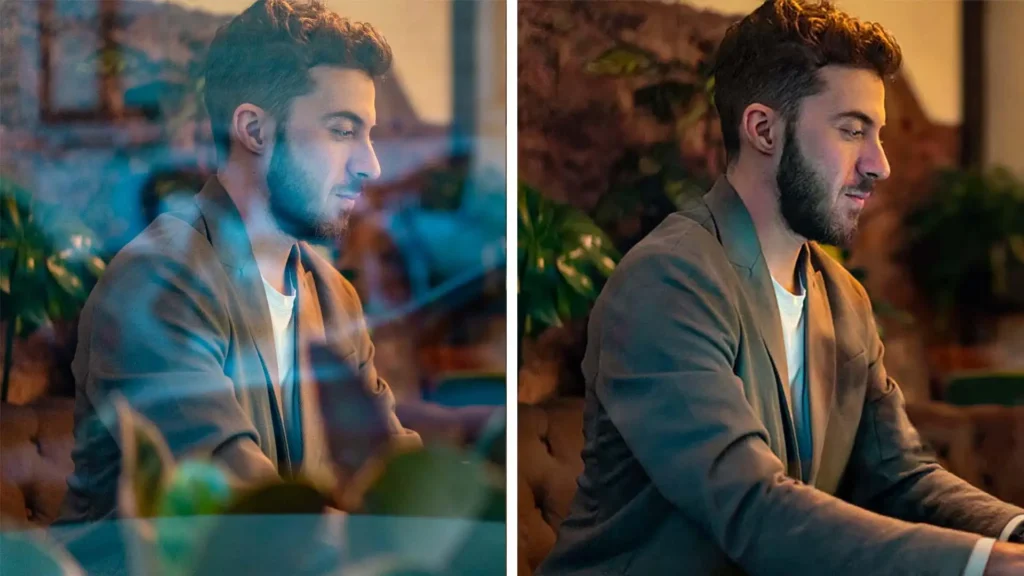
Taking photographs through glass can sometimes create unwanted reflections.
For example, you might capture a beautiful view through a hotel window, but reflections of indoor lights or objects appear in the photograph.
Photoshop’s Reflection Removal feature is designed to reduce or remove reflections from suitable images.
It can help photographers improve photographs taken through windows, glass doors, and other reflective surfaces.
However, the final result depends on the quality of the original photograph and the amount of reflection present.
7. Generative Upscale
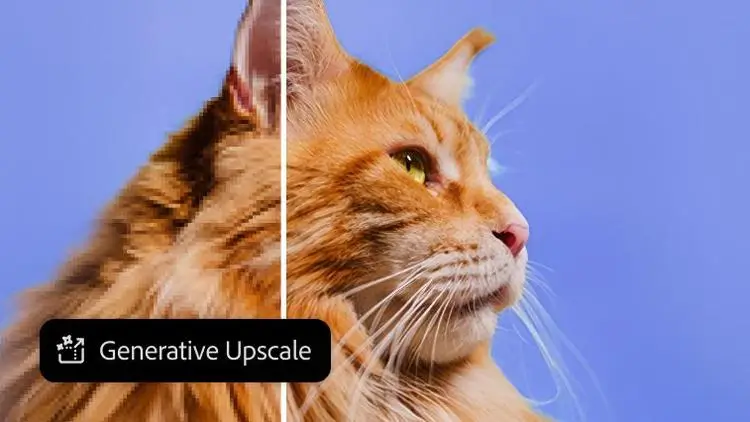
Generative Upscale helps improve the resolution and clarity of an image.
If you have an old photograph or a low-resolution image, this feature can help create a larger, sharper version.
It can be useful when preparing images for printing, websites, presentations, and advertising materials.
Adobe also offers access to certain partner models for image enhancement, including technology from Topaz Labs. Availability and credit requirements depend on the selected model and plan.
8. Generate Similar
Sometimes, the first AI-generated result is not exactly what you want.
Generate Similar helps you explore additional versions of a selected result.
For example, if you use Generative Fill to add a handbag to a photograph, Photoshop may provide multiple variations. You can select your favourite version and generate similar results.
This makes it easier to experiment with different creative ideas without starting the editing process again.
9. AI Model Selection
Another interesting feature is the ability to select different AI models for supported generative tasks.
Photoshop includes Adobe Firefly models and selected partner models, including Google’s Gemini image models and FLUX models.
Different models can produce different visual styles and results. This gives users more flexibility when working on complex creative projects.
Keep in mind that partner models may use premium generative credits and their availability can vary by region and application version.
How to Use Photoshop Generative Fill
Using Generative Fill is quite simple, even if you are new to AI photo editing.
Here is a step-by-step guide.
Step 1: Open an Image
First, open Adobe Photoshop on your computer and import the photograph you want to edit.
Step 2: Select an Area
Choose a selection tool, such as the Selection Brush or Object Selection tool, and select the part of the image you want to change.
Step 3: Click Generative Fill
Once the area is selected, click the Generative Fill option in Photoshop’s Contextual Task Bar.
Step 4: Enter Your Prompt
Write a simple description of what you want Photoshop to create.
For example:
“Add a modern white sofa with two cushions.”
If you want to remove the selected object, you can leave the prompt empty.
Step 5: Click Generate
Photoshop will process your request and create different variations.
Step 6: Select Your Favourite Result
Review the generated options and choose the one that looks best.
You can also use Generate Similar to explore more variations.
Step 7: Make Final Adjustments
After generating the result, you can use Photoshop’s regular editing tools, masks, adjustment layers, and other features to improve the image.
Your original image remains protected because the generated content is placed on a separate layer.
Who Should Use Photoshop Generative AI?
Photoshop Generative AI is designed for different types of users. You don’t need to be a professional graphic designer to benefit from its features.
Here are some people who can get the most value from it.
1. Photographers
Photographers can use AI tools to remove unwanted objects, improve photographs, change backgrounds, and extend image borders. It can also help save time during photo retouching.
2. Graphic Designers
Graphic designers can create visual concepts, experiment with different objects, and build creative compositions. Generative Fill and Harmonize are particularly useful for this type of work.
3. Social Media Creators
YouTubers, Instagram creators, and digital marketers regularly need attractive images. Photoshop AI can help them create thumbnails, promotional graphics, banners, and social media posts.
4. Ecommerce Business Owners
Online sellers can use Generate Background and Generative Fill to create better product photographs. They can also remove unwanted objects and prepare images for product listings.
5. Marketing Agencies
Marketing professionals can use Photoshop AI to create advertising concepts, product mockups, and promotional materials. It can also speed up repetitive image editing tasks.
Photoshop Generative AI Pricing
Photoshop Generative AI is not a completely free tool. You need an eligible Adobe subscription to access Photoshop and its AI features.
Adobe also provides a seven-day free trial for eligible new subscribers. The available generative credits depend on the subscription plan.
Here is an overview of some available plans and their pricing in India.
| Plan | Price in India | Main Benefits |
|---|---|---|
| Photoshop | ₹599/month for the first year (promotional annual plan) | Photoshop on desktop, web, and mobile, 100GB cloud storage, and 25 monthly generative credits |
| Photoshop (regular price) | ₹733.96/month | Photoshop and included generative AI features |
| Creative Cloud Pro | ₹1,199/month (eligible introductory offer) | Photoshop, 20+ Adobe apps, and a larger generative credit allowance |
| Free Trial | Free for 7 days | Temporary access to Photoshop and its features |
Prices are based on Adobe’s India website and promotional terms available at the time of writing. Offers, taxes, renewal prices, billing conditions, and plan inclusions can change. Check the checkout page before purchasing.
You can check the latest plans here: Adobe Photoshop Plans and Pricing.
Understanding Generative Credits
Adobe uses a credit system for many of its AI features.
Most standard generative features use one credit per generation, although some features require more. For example, Harmonize uses five credits per generation, while certain premium features and partner models have different credit requirements.
Creative Cloud Pro and eligible Firefly plans offer unlimited access to standard generations, subject to Adobe’s plan conditions. Premium features can still consume credits.
You can check your remaining credits from the Account menu inside Photoshop.
Is Photoshop Generative AI Free?
No, Photoshop Generative AI is not completely free.
You need an eligible Photoshop or Creative Cloud subscription to use its AI features in Photoshop. However, new users can try Photoshop through Adobe’s seven-day free trial, subject to eligibility.
If you only need AI image generation or occasional image editing, Adobe Firefly’s free offering may be worth exploring. Its free usage and available credits are limited.
Advantages of Photoshop Generative AI
Photoshop’s AI features offer several benefits for both beginners and professional designers.
- Saves Time: You can remove objects, change backgrounds, and make complex edits much faster.
- Easy to Use: Many AI features work with simple text prompts and selections.
- Professional Editing Tools: AI features are combined with Photoshop’s traditional editing tools.
- Non-Destructive Editing: Generated results are placed on separate layers, so you can change or remove them later.
- Multiple Variations: You can generate different versions and choose the best result.
- Better Creative Control: You can fine-tune AI-generated images with masks, layers, and adjustment tools.
- Multiple AI Models: Supported partner models provide additional options for image generation and editing.
Disadvantages of Photoshop Generative AI
Although Photoshop Generative AI is powerful, it also has a few limitations.
- Paid Subscription: You need a suitable Adobe plan to access Photoshop.
- Credit Limitations: Some AI features consume generative credits, and premium generations may use more.
- Internet Required: Cloud-based generative features need an active internet connection.
- Imperfect Results: Sometimes generated objects may have incorrect details, shapes, or proportions.
- Learning Curve: Beginners may need some time to understand Photoshop’s layers, selections, masks, and other editing tools.
- Model Restrictions: Different AI models may have different commercial-use terms and availability.
Is Photoshop Generative AI Safe for Commercial Use?
This is an important question for designers, agencies, and business owners.
Adobe’s Firefly models are trained using licensed content, including Adobe Stock content and public-domain material where copyright has expired. Adobe states that eligible Firefly-generated content can be used in commercial projects.
However, you should pay attention to the AI model you select.
Partner models may have different terms and conditions. Always check the applicable model’s usage rules before using generated images in paid advertisements, client projects, or commercial products.
Also, check whether a feature is marked as beta and whether any special restrictions apply.
Does Adobe Use Your Images to Train Its AI?
Adobe states that it does not train Firefly generative AI models on customer content.
This is useful information for photographers, designers, and businesses that work with private creative projects.
However, you should still review Adobe’s privacy policies and the terms of any partner model you use, especially when uploading confidential client images or business assets.
Photoshop Generative AI vs Traditional Photo Editing
Traditional Photoshop editing often requires manual work. For example, removing a person from a photograph may involve selecting the person, refining the edges, removing the object, and correcting the background.
Generative AI makes many of these tasks easier.
You can simply select the unwanted person and use Generative Fill or the Remove Tool to clean up the image.
However, AI does not replace every traditional editing technique. Professional designers may still need manual masking, colour correction, retouching, and layer adjustments to achieve the desired result.
The best approach is to combine AI features with traditional Photoshop editing tools.
Final Thoughts
Photoshop Generative AI is a useful addition to one of the world’s most popular photo editing applications. Features like Generative Fill, Generative Expand, Harmonize, Generate Background, and Generative Upscale make image editing faster and more convenient.
It is especially helpful for photographers, graphic designers, content creators, ecommerce sellers, and marketing professionals who regularly work with images.
The biggest advantage is that you don’t have to depend entirely on manual editing. You can describe what you want, let Photoshop generate the result, and then make further adjustments using its professional editing tools.
However, it is not a completely free solution, and some features require generative credits. You may also need to make manual corrections when AI-generated results are not perfect.
Overall, Photoshop Generative AI is worth considering if you want AI-powered image editing combined with professional-level creative control.
Alternatives to Photoshop Generative AI
If you want to explore other AI image editing tools, here are four good alternatives worth considering.
1. Adobe Firefly
Adobe Firefly is an AI-powered creative platform for generating and editing images, videos, and other visual content. It offers features such as Generative Fill, Generative Expand, and text-to-image generation through a browser-based interface.
2. Luminar Neo
Luminar Neo is an AI-powered photo editing application designed for photographers. It offers tools for portrait retouching, sky replacement, image enhancement, background editing, and creative photo effects.
3. Dzine
Dzine is an AI image generation and editing platform that helps users create, modify, and improve visual content. It offers features for image editing, creative composition, and generating consistent visual designs.
4. Krea
Krea is an AI creative platform for image generation, editing, and enhancement. It offers real-time image generation, multiple AI models, and image upscaling tools for designers and digital creators.