Creating videos usually requires a camera, editing software, and some time. But what if you already have a good photograph and want to turn it into a moving video? This is where AI video generators can help.
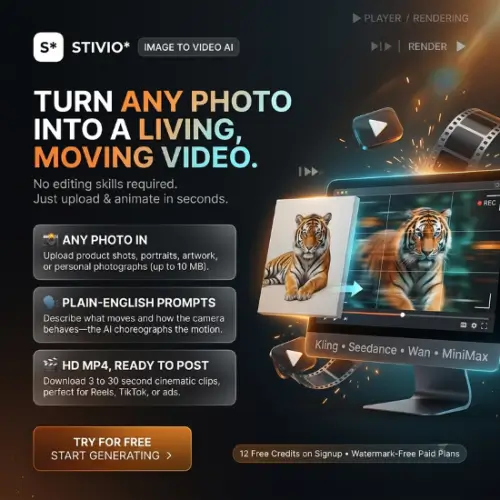
Stivio is an AI-powered image-to-video generator that turns ordinary photographs into short videos. You simply upload an image, describe the movement you want in plain English, select an AI model, and let Stivio create a video for you.
The platform is useful for content creators, online sellers, marketers, and anyone who wants to bring still images to life without learning complicated video editing skills.
Whether you want to animate a product photograph, make an interesting social media clip, or add movement to an old family picture, Stivio offers a simple way to do it.
In this Stivio review, we will explore its features, working process, AI models, pricing, benefits, limitations, and some alternatives to help you decide whether it is worth trying.
What Is Stivio?
Stivio is an online AI video generation tool that converts a single still image into a short video. Instead of recording a new video, you can use an existing photograph and tell the AI how you want the scene to move.
For example, imagine you have a photograph of a person standing near the beach. You can upload that photograph and enter a prompt such as:
“Make the person slowly turn towards the camera while the ocean waves move in the background. Use a smooth cinematic camera movement.”
Stivio will use your image and instructions to generate a video. One interesting thing about Stivio is that it gives you access to multiple AI video models from one platform. You do not need to create separate accounts for different AI video providers just to experiment with different models.
You can also select the video duration, check the credit cost before generation, preview the result, and download the finished video as an HD MP4 file.
The platform focuses mainly on image-to-video generation rather than offering a complete professional video editing studio.
How Does Stivio Work?
Stivio keeps the video creation process simple. You do not need technical knowledge or professional editing experience.
Here is how you can create your first AI video.
1. Upload Your Image
First, visit the Stivio website and sign in to your account. You can upload an image directly from your computer.
The platform supports three common image formats:
- PNG
- JPEG
- WebP
You can upload product photographs, portraits, landscape images, artwork, or other pictures you have permission to use.
Your uploaded photograph becomes the starting frame of the generated video. Stivio also follows the aspect ratio of your original image.
2. Write a Motion Prompt
After uploading your photograph, describe what you want to happen in the video. You can use normal English instead of complicated commands or animation settings. For example:
- Make the camera slowly zoom towards the product.
- Add gentle wind movement to the person’s hair.
- Make the person smile naturally and look towards the camera.
- Create a cinematic camera movement around the subject.
- Add realistic movement to the ocean waves and clouds.
You can describe the subject’s movement, camera direction, speed, and overall mood.
A clear prompt can help the AI understand your expectations. However, the final result will also depend on the selected model and the quality of the original image.
3. Select an AI Model and Video Length
Now choose the AI video model you want to use. Stivio provides multiple models, including Kling, Wan, MiniMax, and Seedance options.
You can also select a video duration between 3 and 30 seconds. Before starting the generation, Stivio displays the required credits. This helps you understand the cost before spending your credits.
4. Generate and Download Your Video
Once everything is ready, click the Generate button. Stivio processes your image and prompt using the selected AI model. According to its website, generation typically takes around 1–5 minutes, depending on the video and processing conditions.
After generation, you can preview your video in the browser, download it as an HD MP4, or share it using a stable link. You can also take the downloaded video into another editing tool to add music, captions, voiceovers, or other effects.
Main Features of Stivio
Stivio offers several useful features that make it a practical option for people who want to create short videos from existing photographs.
1. Multiple AI Video Models
One of the biggest advantages of Stivio is that it provides access to six different AI video models.
The available models include:
- Kling O3: A video generation model with optional audio support.
- Kling 2.6: Useful for generating realistic movement from still images, with optional audio.
- Wan 2.6: Supports image-to-video generation with audio options.
- MiniMax H3: Another option for creating AI-generated video clips.
- Seedance 2.5: A premium model designed for more advanced video generation.
- Seedance 2.0: An additional model for creating more cinematic AI videos.
You can switch between these models without creating separate accounts with each provider. This makes it easier to experiment and find the model that gives you the results you want.
Different models may produce different results from the same photograph and prompt, so testing a few options can be helpful. Photos to HD Video
2. Simple Text-Based Motion Prompts
You do not need to understand animation or video editing to use Stivio. The platform allows you to describe the movement you want using simple English sentences.
For example, you can ask the AI to make a person smile, move a camera closer to a product, create flowing water, or add natural movement to the background.
You can also describe camera movements such as:
- Slow zoom-in
- Camera push-in
- Camera tracking
- Cinematic camera movement
- Smooth camera rotation
This feature is especially helpful for beginners who want to create attractive videos without spending hours learning professional editing software.
3. Create Videos Between 3 and 30 Seconds
Stivio allows you to select a video duration between 3 and 30 seconds. This gives you flexibility depending on your project.
For example, a short 3–5 second clip may be enough for an animated product photograph, while a longer 10–30 second video may work better for storytelling or social media content.
Keep in mind that longer videos generally require more credits. The platform calculates the cost based on the selected model and video duration.
4. Supports Popular Image Formats
You do not need to convert your photographs into special formats before uploading them.
Stivio supports:
- PNG
- JPEG
- WebP
According to its official website, uploaded images can be up to 10 MB. Another useful feature is that the generated video follows the aspect ratio of the original image. This makes it easier to maintain the original image format when creating video content. Photos to HD Video
5. HD MP4 Video Downloads
After generating a video, you can preview it directly in your browser. If you like the result, you can download it as an HD MP4 file.
This format is widely supported by video editors, social media platforms, and website builders. You can use your downloaded videos for Instagram Reels, YouTube Shorts, TikTok, product pages, advertisements, and other content.
Free videos include a small watermark, while paid purchases provide watermark-free exports.
6. Credit Cost Before Generation
AI video generation can become expensive when you experiment with different prompts and models. Stivio uses a credit-based system. The required credits depend on the selected AI model, video duration, and, where applicable, resolution.
One useful thing is that Stivio displays the credit cost before you start generating a video. For example, a 5-second video using a standard model such as Kling or Wan starts at 10 credits.
Premium models, including Seedance, can require more credits. This makes it easier to manage your usage and avoid unexpected credit deductions. Photos to HD Video
7. Automatic Credit Refunds for Failed Generations
Sometimes an AI video generation may fail because of a processing problem or other technical issue.
The good thing is that Stivio automatically returns the credits used for failed generations. This is a helpful feature because you do not lose your credits when a generation fails.
However, remember that an unsuccessful result is not necessarily the same as a failed generation. If the AI successfully creates a video but the movement is not what you expected, you may need to spend additional credits to try again.
8. Share Videos Using Stable Links
Stivio also makes sharing easier. After generating a video, you can share it using a link instead of downloading and uploading the same file again.
According to the official website, finished videos remain available through a stable CDN link for one year. This can be useful when sharing videos with clients, colleagues, or friends. Photos to HD Video
9. Privacy and Data Protection
Privacy is important when uploading personal photographs or business images to an AI platform. Stivio states that uploaded images, prompts, and generated videos are not used to train its models or sold for advertising.
However, there is one important detail to understand: your photograph and prompt are sent to the selected third-party AI provider for video generation.
Therefore, users should avoid uploading confidential business materials, private photographs, or images of identifiable people without the necessary permission.
It is always a good idea to review the platform’s privacy policy before uploading sensitive material.
Best Ways to Use Stivio
Stivio is not limited to one type of video creation. You can use it for different personal and professional projects.
Here are some practical examples.
1. Create Product Videos for Online Stores
If you run an online store, you probably have several product photographs that you use on your website. Instead of displaying only static images, you can turn some of them into short videos.
For example, you can upload a photograph of a watch and ask Stivio to create a slow camera movement around it.
You can use the resulting clip on product pages, social media advertisements, and promotional posts. This can help make your product presentation more interesting without arranging a new photoshoot.
2. Create Content for Instagram Reels and YouTube Shorts
Social media creators always need fresh content. However, recording new videos every day is not always possible.
With Stivio, you can take existing photographs and turn them into short video clips. These clips can be used as B-roll, visual introductions, background footage, or supporting scenes.
For example, if you create travel content, you can animate landscape photographs to add movement to your videos.
You can also combine multiple generated clips in a video editor to create a more complete social media video.
3. Animate Old Family Photographs
This is one of the more interesting uses of image-to-video AI. You can upload an old family photograph and use a motion prompt to bring the image to life.
For example, you can try creating a gentle smile, natural head movement, or a subtle camera zoom.
It can be a fun way to revisit old memories and create something different from traditional photographs. However, AI-generated movements are not real recordings of what happened in the past. The AI is creating an interpretation of the photograph.
4. Create Marketing Videos
Small businesses and marketing agencies can also use Stivio.
You can turn existing brand photographs into short promotional clips without hiring a video production team for every small project.
For example, a restaurant can animate food photographs, a clothing brand can create moving product visuals, and a travel agency can add movement to destination photographs.
These videos can be used in advertisements, promotional campaigns, and social media posts.
5. Create B-Roll for Video Projects
Sometimes, you need additional footage to make your main video more interesting. Stivio can help you create short supporting clips from photographs.
For example, if you are making a video about artificial intelligence, you can animate photographs of computers, robots, technology products, or digital workspaces.
You can then import these clips into your regular video editing software. This can save time when you do not have access to suitable stock footage.
Stivio Pricing and Plans
Stivio uses a credit-based pricing system. You receive credits and spend them whenever you generate videos.
The official pricing page currently displays free access and two one-time purchase options. It also provides monthly and yearly pricing options through its pricing selector.
Here is the pricing information displayed for the one-time purchase options:
| Plan | Price | Credits |
|---|---|---|
| Free | $0 | 12 credits |
| Pro | $19 one-time | 160 credits |
| Team | $59 one-time | 640 credits |
Source: Official Stivio pricing page, checked November 5, 2026. Prices are in USD. Photos to HD Video
Free Plan
The Free plan is a good starting point for beginners. It provides 12 free credits when you sign up, which is enough to test a short video, including a generation using Seedance 2.5.
Features include:
- 12 free credits.
- Image-to-video generation.
- HD MP4 download with a small watermark.
- Access to different AI models.
- Automatic refunds for failed generations.
You can use this plan to understand how the platform works before spending money.
Pro Plan
The Pro plan costs $19 as a one-time purchase on the current pricing display. It includes 160 credits, which can generate up to 16 five-second videos using a standard model costing 10 credits per video.
Features include:
- 160 credits.
- Access to six AI video models.
- Video duration from 3 to 30 seconds.
- Watermark-free HD MP4 downloads.
- Personal and commercial usage rights.
- Shareable video links.
This plan is suitable for individual creators, freelancers, and small online businesses.
Team Plan
The Team plan costs $59 as a one-time purchase on the current pricing display. It includes 640 credits, allowing up to 64 five-second videos at the standard 10-credit rate.
Additional benefits include:
- 640 credits.
- Everything included in Pro.
- More credits for larger projects.
- Lower cost per video at the listed credit allocation.
- Email support.
This option may be useful for marketers and businesses that regularly create multiple AI videos.
Important pricing note: Stivio also lists monthly and yearly billing options. Monthly subscription credits reset with each billing cycle, while one-time top-up credits do not expire. Yearly plans provide their credits upfront. Check the checkout page for the currently selected billing option before purchasing. Photos to HD Video
Pros and Cons of Stivio
Like every AI tool, Stivio has some advantages and limitations. Here are the important ones to consider.
Pros
- Easy to use: The platform has a simple workflow that beginners can understand.
- Multiple AI models: You can access six different video models from one place.
- No editing experience required: Just upload an image and describe the movement.
- Flexible video length: Create videos between 3 and 30 seconds.
- Credit transparency: Check the required credits before generating a video.
- HD MP4 downloads: Download your finished videos for different platforms.
- Free credits: New users can test the platform before purchasing.
- Commercial usage rights: Paid purchases include personal and commercial usage rights.
- Automatic refunds: Credits are returned when a generation fails.
- No watermark on paid plans: Paid users can download clean videos.
Cons
- Limited to image-based creation: Its main workflow requires an existing photograph.
- Credit-based system: Frequent video generation can consume credits quickly.
- AI results can vary: The final video may not always match your exact expectations.
- Generation takes time: Videos can take around 1–5 minutes, depending on processing conditions.
- Third-party processing: Your uploaded image and prompt are sent to the selected AI provider.
- Free videos have a watermark: You need a paid purchase to remove it.
Is Stivio Worth Trying?
Yes, Stivio is worth trying if you regularly work with photographs and want to turn them into short AI-generated videos.
Its biggest advantage is the ability to access multiple AI video models from one platform. Instead of switching between different services, you can experiment with Kling, Wan, MiniMax, and Seedance models using the same account.
The simple text-based prompting system is another advantage. You do not need professional animation skills or complicated editing software to create your first video.
I particularly like its potential for e-commerce sellers and social media creators. If you already have product photographs, promotional images, or other visual content, Stivio gives you another way to use those assets.
However, it is important to understand that Stivio is mainly an image-to-video generator. If you want to create complete videos from scripts, edit multiple scenes, add subtitles, or produce long-form content, you may need additional tools.
I would recommend starting with the free credits. Try different models with the same photograph and compare the results before purchasing a plan.
Final Thoughts
Stivio is a useful AI tool for anyone who wants to transform ordinary photographs into short, engaging videos without complicated editing.
Its biggest strengths are its simple workflow, multiple AI models, flexible video duration, and straightforward credit system. It can be particularly helpful for e-commerce businesses, content creators, marketers, and people who want to animate old photographs.
Although it does not replace a complete video editing application, it can save time when you need short animated clips from existing images.
Overall, Stivio is worth exploring if image-to-video generation is what you need. The free credits also give you an opportunity to test its capabilities before making a purchase.
Alternatives to Stivio
If Stivio does not meet your requirements, here are some other AI video generation tools worth exploring.
1. Kling AI
Kling AI provides its own AI video generation tools for creating videos from text and images. It also includes motion controls and character consistency features, making it a good alternative for creators who want to work directly with Kling models.
2. Ezier
Ezier is an AI-powered creative workspace that provides image and video generation, editing, and enhancement features. It offers access to multiple AI models, making it useful for creators who want more than basic image-to-video generation.
3. Revid
Revid helps users create short-form videos using text, images, and other references. It is a good option for social media creators who want to produce complete videos rather than simply animate photographs.
4. Vidu
Vidu offers AI video generation with text-to-video and image-to-video capabilities. It also provides features such as reference consistency, camera controls, keyframes, and native audio support.
5. PixVerse
PixVerse is a broader AI video creation platform that supports text-to-video, image-to-video, audio generation, character references, and MultiShot features. It is suitable for users who want more creative control over their videos.